WSOP Free Chips App Not Working? How to Fix Crashes and Loading Problems (2026)
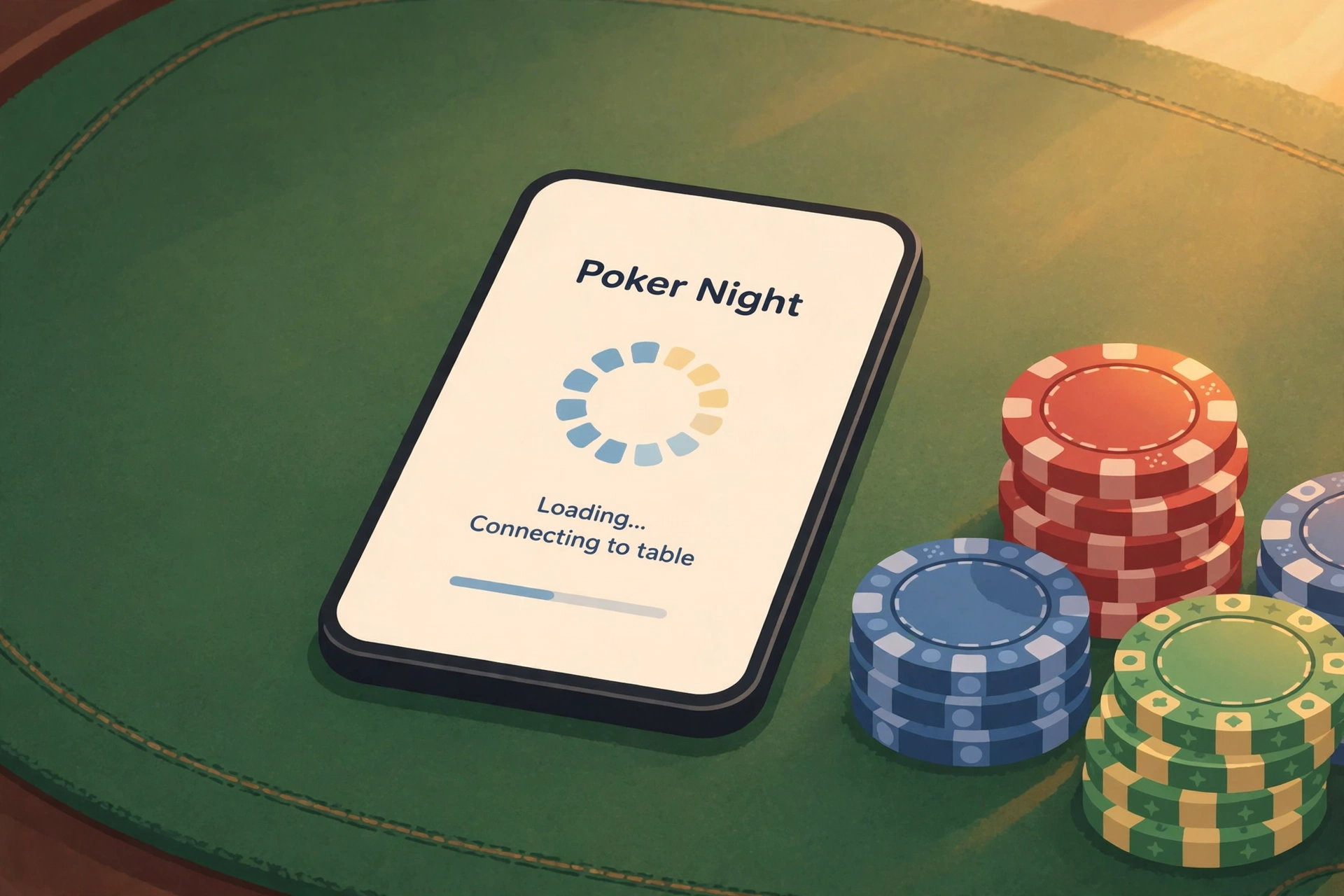
If the WSOP free chips app is not working, the fix is usually simple: close the app fully, check your internet connection, and open it again. In my experience, most crashes, freezes, and loading problems come from a weak connection, an app that needs updating, or a phone that is running low on space. Work through the checks in this guide one by one, starting with the quickest, and most of them take less than a minute.
I’ve had the app freeze on me more than once, and I know how annoying it feels when the loading screen just spins and nothing happens. Your chips are virtual only, with no real money and no cash value, and the game is for players aged 21 and over, so there is no need to rush or to risk your account on a shortcut. A crash almost never means your account is gone: your chip balance and progress are stored with your account, not just on your phone, so getting the app working again normally brings everything back as you left it.
1. WSOP Free Chips App Not Working: Is It the App or Your Connection?
The first thing I do when the app stops working is ask a simple question: is the problem the app, or is it my connection? The two look the same on screen — a spinning wheel, a frozen table, a screen that never loads — but the fixes are completely different, so it pays to tell them apart before you change anything.
Open another app that needs the internet, like your browser, and see whether it loads normally. If nothing loads anywhere on your phone, the problem is your connection, and you should jump to the section on Wi-Fi and mobile data below. If everything else works fine and only the WSOP app is stuck, the problem is with the app itself, and the steps about restarting, updating, and clearing the cache are the ones that will help.
2. Close the App Fully and Open It Again
This is the fix I try first, every single time, because it works more often than you would expect. Simply going back to your home screen does not close an app — it usually keeps running in the background, in the same stuck state. You need to close it fully, so it starts fresh when you open it again.
On most phones, open the list of recent apps — usually by swiping up from the bottom of the screen, or by tapping the recent-apps button — and swipe the WSOP app away. Wait a few seconds, then tap the app icon to open it again. If the app opens fine after this, you are done. If it crashes or freezes again straight away, do not keep repeating the same step — move on to the next fix.
3. Update the App to the Latest Version
An out-of-date app is one of the most common reasons for crashes, and one of the easiest to overlook. App updates often include fixes for exactly the kind of bug that makes an app freeze or close without warning, and an older version can stop working properly when the game itself changes on the other side. If you have not updated in a while, this is a very likely cause.
Open your phone’s app store — the App Store on an iPhone, or the Google Play Store on an Android phone — search for the WSOP app, and check whether an update is waiting. If there is one, install it, then open the app again. While you are there, turn on automatic updates if they are off, so you do not fall behind again without noticing. If the app store says the app is already up to date, move on: the problem lies somewhere else.
4. Clear the App Cache
Every app stores small temporary files, called a cache, to help it load faster. Over time, those files can get out of date or damaged, and when that happens the app can freeze, load the wrong thing, or crash instead of starting properly. Clearing the cache removes those temporary files and lets the app build fresh ones, and it doesn’t delete your account, your chips, or your progress.
On an Android phone, you can usually do this from your phone’s settings: find the apps list, tap the WSOP app, then look for the storage option and the button to clear the cache. Be careful to choose clear cache, not clear data, because clearing data can sign you out and remove saved settings. On an iPhone, apps do not have a cache button in the same way, so the closest options are to close the app fully, restart the phone, or remove and reinstall the app — I cover reinstalling later in this guide, as a last resort.
5. Check You Have Enough Free Storage
This is the cause that surprises people the most. When your phone is nearly full, apps do not have room to save the files they need while they run, and the result can be crashes, frozen screens, or an app that refuses to open at all. I have seen this happen on phones that felt fine in every other way, simply because the storage had quietly filled up with photos, videos, and other apps.
Check how much free space you have in your phone’s settings, under storage. If you are down to very little, free some up: delete photos and videos you have already backed up, remove apps you no longer use, and clear out old downloads. You do not need to empty your phone — just make enough room for the app to work comfortably again.
6. Check Your Wi-Fi and Mobile Data
The WSOP app needs a steady internet connection to load, and a connection that keeps dropping can look exactly like a broken app. You might see a table that loads halfway and then stops, a spinning wheel that never ends, or a game that freezes every time you try to act. Before you blame the app, make sure the connection itself is solid.
If you are on Wi-Fi, try switching to mobile data, and see whether the app behaves differently. If it works on mobile data but not on Wi-Fi, the problem is with your Wi-Fi, and restarting your router is the usual fix. If it works on Wi-Fi but not on mobile data, check that you have signal and have not run out of mobile data for the month.
7. Restart Your Phone or Tablet
If closing the app did not help, restart the whole device. This sounds too simple to work, but it is one of the most reliable fixes there is, because it clears out whatever was stuck in the background — an app that did not close properly, a connection that got tangled, or a phone that has simply been running for too long without a break.
Hold down the power button, choose the restart or power-off option, and if you power off, wait a few seconds before switching it on again. Wait until the device is fully back up and running before you open the app — opening it while the phone is still loading its own apps can make it look broken when it is not.
8. Reinstall the App as a Last Resort
Reinstalling is the strongest fix you can do yourself, and that is why I keep it for last. Removing the app and installing it fresh replaces every file, including any damaged ones that clearing the cache could not touch. Do this only after you have tried the steps above, because it takes more time, and you’ll need to sign in again afterwards.
Before you remove anything, make sure you know how you sign in — whether it is with an account, an email address, or a linked social account. If you are not sure, check while the app still opens, or check the official WSOP website at https://www.wsop.com/ for the sign-in options. Don’t delete the app if you cannot sign back in, because that is the one mistake that could cost you access to your account. Once you are sure, delete the app, restart your phone, and install it again from your phone’s official app store.
9. WSOP Free Chips App Not Working? Claim Your Daily Links From the Website
Here is the good news while you are fixing the app: you do not have to miss your daily free chips. The daily links can also be claimed from the website, so a broken app does not mean a lost day. This is the workaround I use myself whenever the app is misbehaving, and it takes only a couple of minutes.
Visit the homepage at https://wsopfreechips.us/ from your phone’s browser, where you’ll find the daily links collected in one place, and claim them there one at a time, just as you would in the app. If a link itself doesn’t work, there is a separate guide for that problem at https://wsopfreechips.us/wsop-free-chips-links-not-working/ — that guide is about links that will not open, a different problem from an app that will not open. If you are new to collecting chips every day, the guide at https://wsopfreechips.us/how-to-get-free-wsop-chips-every-day/ explains the daily routine in full, and the mobile guide at https://wsopfreechips.us/wsop-free-chips-on-mobile/ has more tips for playing on a smaller screen.
10. When to Contact Support, and What to Tell Them
If you have worked through every step in this guide — restart, update, cache, storage, connection, device restart, and a clean reinstall — and the app still doesn’t work, it is time to contact support. That’s not giving up; it is the right next step, because at that point both you and support can be confident the problem is not something simple on your phone. Support can check things you cannot see, such as whether there is a known problem affecting other players.
When you write to them, include the details that actually help: what kind of phone or tablet you have, whether it is an Android or an iPhone, and roughly how much free storage you have. Describe exactly what happens — the app crashes on opening, it freezes on the loading screen, or it disconnects partway through a game — and say when the problem started, and whether anything changed around then, such as an app update. Say which steps you have already tried, so they do not ask you to repeat them.
11. What Not to Do: Avoid Third-Party “Fix” Apps and Generator Sites
When an app will not work, it is tempting to search for a quick fix, and that is exactly when the scams appear. You will find websites and apps promising unlimited chips, a magic tool that repairs the game, or a generator that adds chips to your account. Do not use them. They cannot do what they claim, and the honest truth is that there is no tool, website, or cheat that can add chips to your account or fix the app from the outside.
At best, those sites waste your time. At worst, they ask you to sign in with your account details, download something harmful, or hand over personal information — and that can put your account and your phone at risk. A real fix never asks for your password, and it never asks you to download an app from outside the official app store. If a site calls itself a chip generator, a hack, or an unlimited-chips tool, treat that as a warning sign, not as help, and close the page. Only install the WSOP app from the official app store, and only get help from the official WSOP website at https://www.wsop.com/ or from the support team.
Frequently Asked Questions
Why does the WSOP free chips app keep crashing when I open it?
What I’ve found is, the most common reasons are an app that needs updating, a phone that is low on storage, or damaged temporary files. Try closing the app fully, updating it from your app store, and clearing the cache. If it still crashes, restart your phone, and if that doesn’t work either, reinstall the app as a last resort — but check your sign-in details first, so you can log back in afterwards.
Why is the app stuck on the loading screen?
A loading screen that never finishes usually means the app cannot reach the game properly, and the most likely cause is a weak or unstable connection. Check your Wi-Fi or mobile data first, and try switching between them to see if one works better. If your connection is fine everywhere else, close the app fully, clear the cache, and restart your phone before trying anything more drastic.
Will I lose my chips if I delete and reinstall the app?
You should not lose your chips, because your balance and progress are stored with your account, not just on your phone. The important thing is to know how you sign in before you delete anything, so you can log back in with the same account details after reinstalling. If you are not sure how you signed in, check first, and do not delete the app until you are certain you can get back in.
Can I still get my daily free chips if the app is not working?
Yes. You can claim your daily links from the website while the app is down, so you do not have to miss a day. Visit the homepage at https://wsopfreechips.us/ from your phone’s browser and claim the links there. If a particular link will not open, the guide at https://wsopfreechips.us/wsop-free-chips-links-not-working/ explains what to do.
The app works on Wi-Fi but not on mobile data. What should I do?
That points to your mobile connection rather than the app. Check that you have a signal and that you have mobile data left for the month, and check that data is turned on for the app in your phone’s settings. If other apps also struggle on mobile data in the same place, the signal itself is weak there, so move somewhere with better reception or wait until you are back on Wi-Fi.
How long should I wait before contacting support?
Contact support once you have tried the steps in this guide — a full app restart, an update, clearing the cache, checking storage and your connection, restarting your device, and a clean reinstall — and the problem is still there. At that point you can tell support exactly what you tried and what happened, which helps them help you faster. While you wait for a reply, keep collecting your daily free chips from the website.